How to Find the UDID of Your iPhone with AppForShare
By Afrah Saleem · · 3 min read
To find your iPhone or iPad UDID with AppForShare, open appforshare.io/udid in Safari on the device, allow the configuration profile to download, install it from Settings, and the page shows your UDID. It is free, needs no account and no computer, and takes about a minute.
What is a UDID?
A UDID (Unique Device Identifier) is a string that identifies one specific iPhone, iPad or iPod touch. Apple uses it to decide which devices may run a test build outside the App Store.
The format depends on the device. Older devices use a 40 character hexadecimal string. Devices from 2018 onwards, starting with the iPhone XS and XR, use a 25 character format with a hyphen after the first 8 characters, such as 00008030-001A2B3C4D5E6F7A.
Why developers need your UDID
iOS only installs apps that Apple's signing system allows on that device. For Ad Hoc and Development builds, the developer must register each tester's UDID in the Apple Developer portal and include it in the provisioning profile. A device that is not in the profile cannot install the build, even with a valid link.
So before a developer can send you a test build, they usually ask for your UDID. For more on how registration works, see Registering UDID: the key to iOS app testing.
How to find your UDID with AppForShare
1. Open the UDID finder in Safari
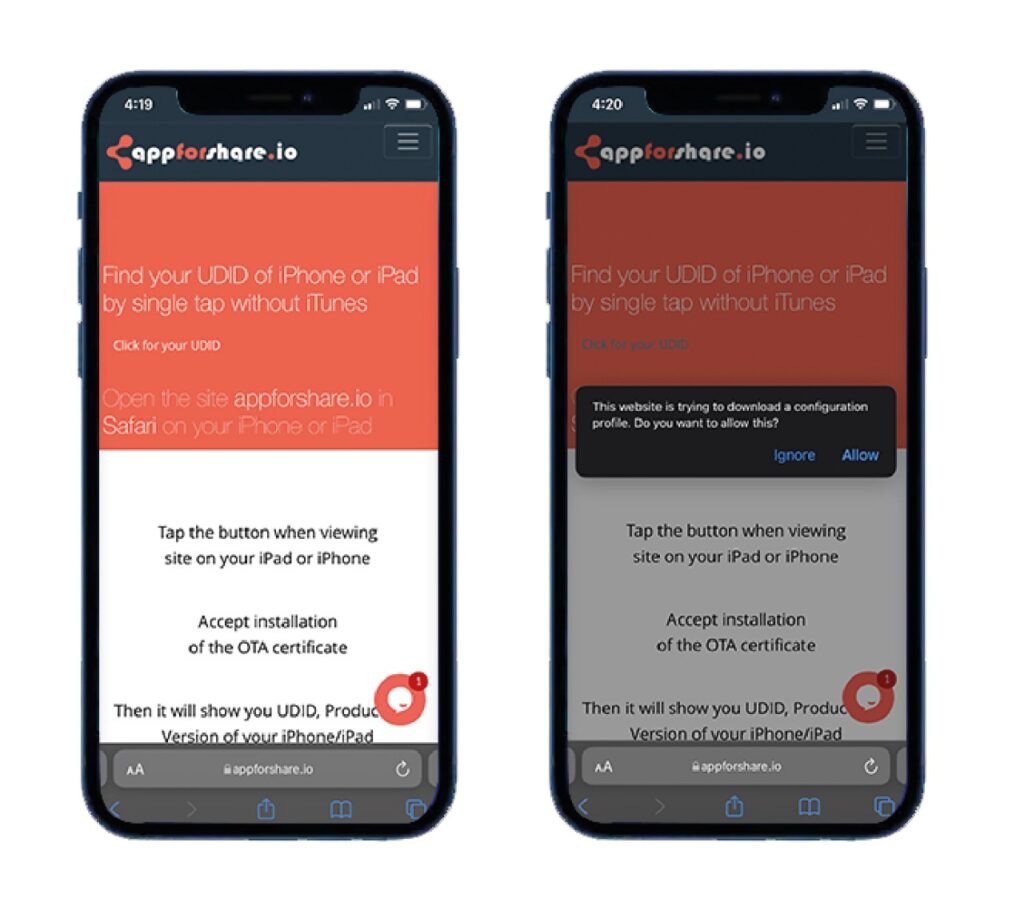
On the iPhone or iPad you want to identify, open Safari and go to appforshare.io/udid. Tap the button to get your UDID. iOS asks whether to allow the website to download a configuration profile. Tap Allow.
2. Install the profile from Settings
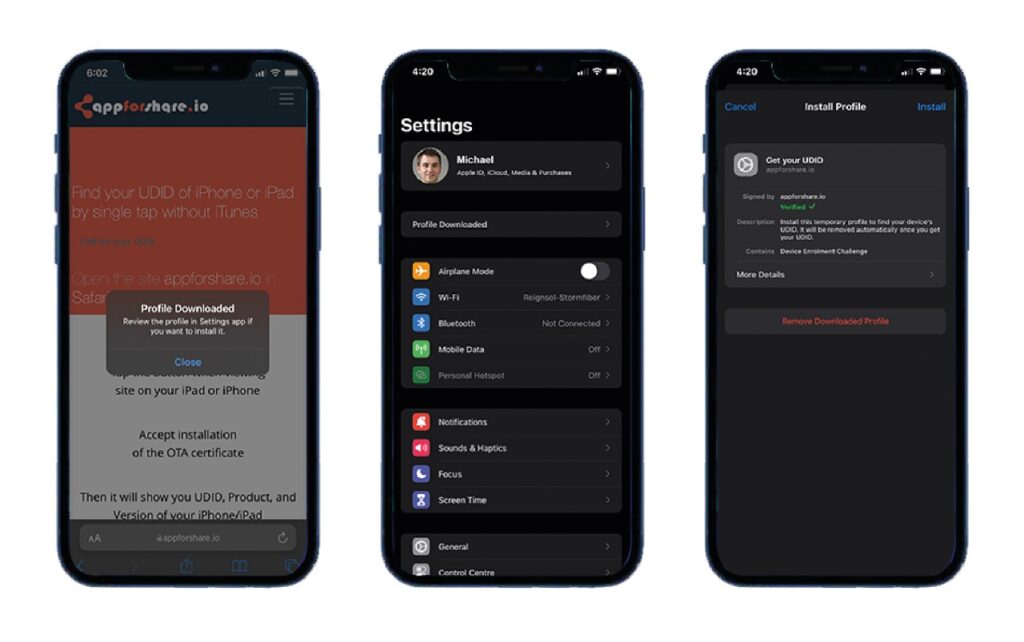
iOS shows a "Profile Downloaded" message. Close it and open the Settings app. Tap Profile Downloaded near the top, then tap Install and enter your passcode if asked. On some iOS versions you find it under General, then VPN and Device Management.
3. See your UDID
After the profile installs, Safari opens the result page with your UDID and other details iOS returns, such as model, iOS version, device name, and where available the serial number, IMEI, ICCID and Wi-Fi address.
4. Send it to your developer
Tap Copy UDID and paste it into a message, or tap Email it to send the UDID and device details by email. If you have an AppForShare account, you can save the device to your list so you can export it for the Apple Developer portal later.
What happens next
The developer adds your UDID in the Apple Developer portal, updates the provisioning profile, signs the build again and uploads the new build. Your device can then install it from the link. If you try an older build that was signed before your device was added, it will not install.
On iOS 16 and later you may also need to turn on Developer Mode before opening Ad Hoc or Development builds.
Privacy
The profile only reads the device information listed above. AppForShare deletes UDID lookups after 1 day unless you choose to save the device to your account. If the profile still appears in Settings afterwards, you can remove it there at any time.
Frequently asked questions
Do I need a Mac or a cable to find my iPhone UDID?
No. Open appforshare.io/udid in Safari on the iPhone, install the profile from Settings, and the UDID appears on the page.
Is the AppForShare UDID finder free?
Yes. It is free and works without an account. An account only lets you save devices to a list.
What information does the UDID profile read?
The UDID, model, iOS version and device name, plus serial number, IMEI, ICCID and Wi-Fi address when iOS returns them.
How long does AppForShare keep my UDID lookup?
UDID lookups are deleted after 1 day, unless you save the device to your account.
I sent my UDID but the build still does not install. Why?
The developer has to add your UDID in the Apple Developer portal, sign the build again with the updated profile and share the new build. Older builds signed before your device was added will not install.


