How to Enable Unknown Sources on Android
By Afrah Saleem · · 4 min read
On Android 8.0 and later, there is no single "Unknown sources" switch anymore. Instead, you allow one specific app, usually your browser or file manager, to install apps. The fastest way is to open the .apk, tap Settings when Android blocks it, turn on Allow from this source, and go back to install.
This guide covers that quick path, the manual path through Settings, how it looks on Samsung phones, and how to turn the permission off again when you are done.
Why Android blocks apps from unknown sources
Apps from Google Play are reviewed and scanned before they reach your phone. An .apk downloaded from a website, an email or a chat has not gone through that process, so Android blocks it by default to protect your data from malware and spyware.
That protection is useful, but developers and testers often need to install apps that are not on Google Play yet: beta builds, internal tools, or a client preview. In that case you give permission to the app that opens the file, and only to that app.
The quick way: allow it from the install prompt
- Download the .apk in your browser, for example Chrome, and tap the downloaded file.
- Android shows a message that your phone is not allowed to install unknown apps from this source. Tap Settings.
- Turn on Allow from this source.
- Tap back. The installer opens again. Tap Install.
You only need to do this once per app. The next time you open an .apk from the same browser, the installer opens directly.
The manual way: through Settings
If you prefer to set it up before downloading, the setting lives under the special app access menu. The exact names vary a little by manufacturer and Android version, but on Android 15 with a stock or Pixel style menu it looks like this:
- Open Settings and tap Apps.
- Tap Special app access (on some phones it is under an Advanced section or a menu icon).
- Tap Install unknown apps.
- Pick the app you will open the .apk with, such as Chrome or Files.
- Turn on Allow from this source.
If you cannot find it, open Settings and search for "unknown apps".
On Samsung Galaxy phones
Samsung's One UI places the same setting under the security menu on many versions. Open Settings, then Security (or Security and privacy), and tap Install unknown apps.
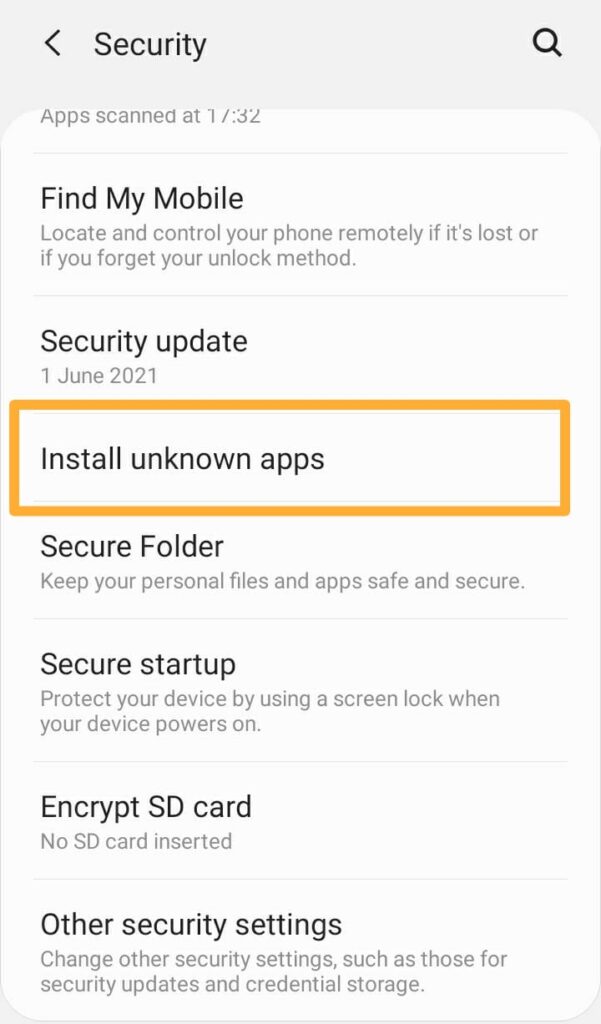
You will see a list of apps, each marked Not allowed by default. Tap the app you will use to open the .apk.

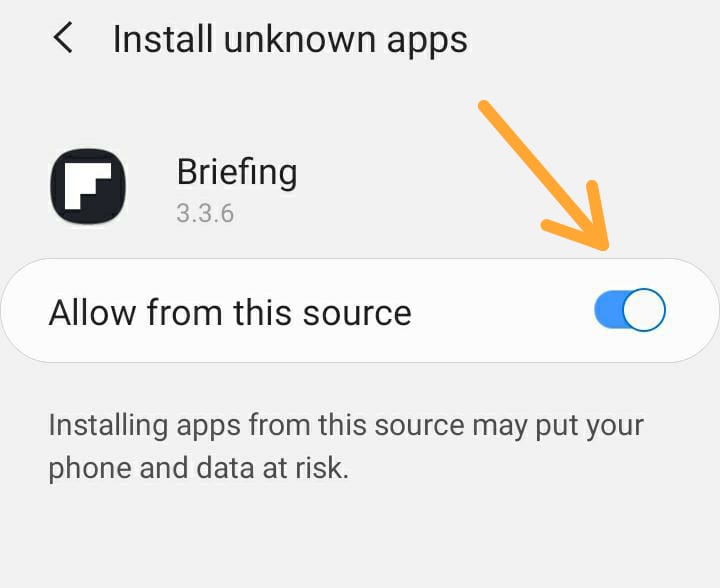
Turn on Allow from this source. Android reminds you that installing apps from this source may put your phone and data at risk.
Older phones: Android 7.1 and earlier
Before Android 8.0, there was one global switch. Open Settings, then Security (or Lock screen and security on older Samsung phones), and turn on Unknown sources. Very few phones in use today still run these versions.
If the app still does not install
- Google Play Protect warning: Play Protect may scan the file and warn you. If you trust the source, you can choose to install anyway. If you do not, cancel.
- "App not installed": often a version conflict. If an older copy of the same app is installed and was signed with a different key, uninstall it first.
- Very old target SDK: recent Android versions refuse to install apps built for very old Android versions. The developer has to rebuild with a newer target SDK.
- App Bundle instead of APK: an .aab file cannot be installed on a phone. Ask the developer for an .apk.
Turn the permission off when you are done
Once your test app is installed, go back to Install unknown apps and turn the permission off for that browser or file manager. The app you installed keeps working. This keeps a random download from installing itself later.
Installing test builds from AppForShare
When a developer shares a build with you through AppForShare, you get a link or QR code. Open it on your phone, tap Install, and allow your browser to install unknown apps the first time. That is the only setting you need. If you are the developer, see How to use AppForShare to send .apk or .ipa files to your clients.
Frequently asked questions
Where is the Unknown sources setting on Android 15?
There is no global switch on Android 8.0 and later. Go to Settings, Apps, Special app access, Install unknown apps, pick the app that opens the file (such as Chrome) and turn on Allow from this source. Menu names vary by manufacturer.
Do I have to allow unknown sources every time I install an APK?
No. The permission is per app and stays on until you turn it off. After allowing your browser once, later APKs opened from that browser go straight to the installer.
Is it safe to allow installs from unknown sources?
It is safe when you trust where the APK comes from, such as a build your own developer shared. Turn the permission off afterwards so other downloads cannot install apps without your knowledge.
What do I need to install a build shared through AppForShare on Android?
Only the link or QR code. Open it on the phone, tap Install, and allow your browser to install unknown apps the first time.


